
📈 Stop Copy-Pasting: Connect Excel or Power BI to PowerPoint
If you prepare the same type of PowerPoint deck week after week, month after month, you know the pain: updating charts, copying new data, checking if that one number changed... It eats up hours you could spend analyzing or presenting.
The good news? You don’t have to start from scratch every time. Two common ways to automate this are:
1️⃣ Linking Excel to PowerPoint
2️⃣ Linking Power BI to PowerPoint
Both help — but they’re not the same. Here’s what you should know.
✅ Option 1: Using Excel as Your Data Source for PowerPoint
How it works:
- Keep raw data in an Excel file.
- Create charts in Excel, then copy them into PowerPoint.
- If data changes, refresh the chart or update the link.
Pros:
✔ Familiar — anyone using Office knows Excel.
✔ Good for simple tables, single-source data.
✔ Low cost — no extra license.
Cons:
✖️ Still have to open each chart and refresh manually.
✖️ No version control if multiple people edit.
✖️ Hard to scale if you need multiple dashboards.
✅ Option 2: Using Power BI as Your Data Source for PowerPoint
How it works:
- Build a report in Power BI Desktop — pulling data from Excel, SQL, cloud sources, etc.
- Publish your report to Power BI Service.
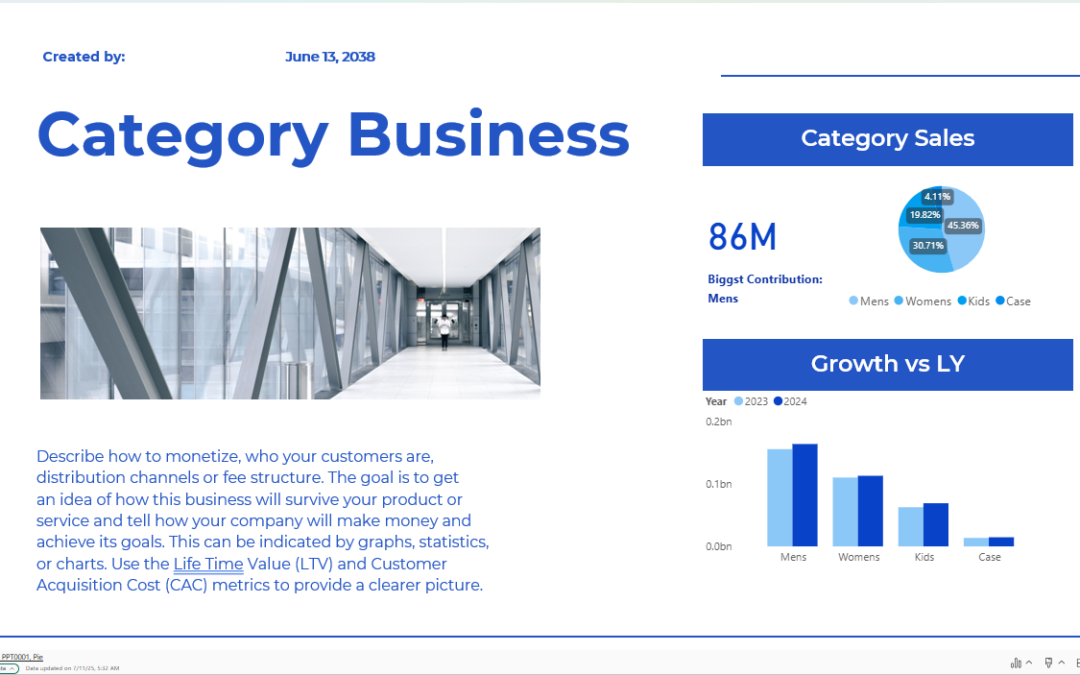
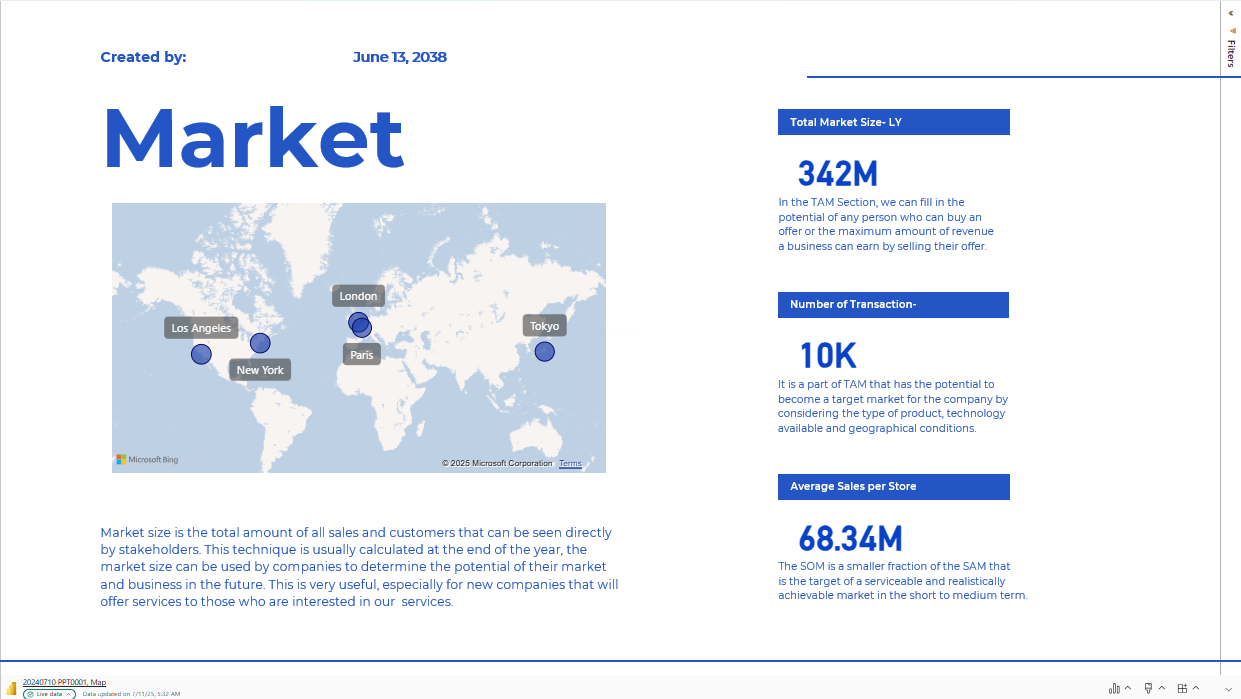
- In PowerPoint, embed an interactive visual or an entire report page.
- When your data updates in Power BI, your PowerPoint refreshes automatically.
Pros:
✔ No need to copy-paste charts each time.
✔ One source of truth for all team members.
✔ Keep visuals interactive (hover, filter) in your slides.
✔ Create custom visuals & calculations with DAX.
Cons:
✖️ Requires some learning if you’re new to Power BI.
✖️ Needs an internet connection to update from Power BI Service.
✖️ To share interactive reports in PowerPoint, teammates may need a Power BI Pro license. Otherwise, they see static exports like PDFs.
🏆 When Should You Use Power BI Instead of Just Excel?
If you:
✅ Prepare recurring reports (weekly/monthly)
✅ Merge multiple data sources
✅ Want dashboards that update automatically
✅ Need to present live, interactive insights
… then Power BI is worth it. You can still use Excel for raw data, but Power BI gives you stronger tools for visuals, filtering, and automation.
🔐 Do You Need Power BI Pro?
Yes — if you want to:
- Share interactive dashboards securely with others
- Let teammates open live links in PowerPoint
- Control who sees what with Row-Level Security (RLS)
Without Pro, others may not view interactive versions in PowerPoint — so you’ll need to export as static PDF/images instead.
💡 Takeaway: Save Time, Reduce Errors, Look Professional
Linking Power BI to PowerPoint can save you hours on repetitive reporting. Keep your numbers consistent, visuals fresh, and your team aligned.
Try it for yourself: grab our free Starter Package with templates, connection guides, and how-to videos.
🚀 Get Started Now📈 Stop Copy-Pasting: Connect Excel or Power BI to PowerPoint
If you prepare the same type of PowerPoint deck week after week, month after month, you know the pain: updating charts, copying new data, checking if that one number changed... It eats up hours you could spend analyzing or presenting.
The good news? You don’t have to start from scratch every time. Two common ways to automate this are:
1️⃣ Linking Excel to PowerPoint
2️⃣ Linking Power BI to PowerPoint
Both help — but they’re not the same. Here’s what you should know.
✅ Option 1: Using Excel as Your Data Source for PowerPoint
How it works:
- Keep raw data in an Excel file.
- Create charts in Excel, then copy them into PowerPoint.
- If data changes, refresh the chart or update the link.
Pros:
✔ Familiar — anyone using Office knows Excel.
✔ Good for simple tables, single-source data.
✔ Low cost — no extra license.
Cons:
✖️ Still have to open each chart and refresh manually.
✖️ No version control if multiple people edit.
✖️ Hard to scale if you need multiple dashboards.
✅ Option 2: Using Power BI as Your Data Source for PowerPoint
How it works:
- Build a report in Power BI Desktop — pulling data from Excel, SQL, cloud sources, etc.
- Publish your report to Power BI Service.
- In PowerPoint, embed an interactive visual or an entire report page.
- When your data updates in Power BI, your PowerPoint refreshes automatically.
Pros:
✔ No need to copy-paste charts each time.
✔ One source of truth for all team members.
✔ Keep visuals interactive (hover, filter) in your slides.
✔ Create custom visuals & calculations with DAX.
Cons:
✖️ Requires some learning if you’re new to Power BI.
✖️ Needs an internet connection to update from Power BI Service.
✖️ To share interactive reports in PowerPoint, teammates may need a Power BI Pro license. Otherwise, they see static exports like PDFs.
🏆 When Should You Use Power BI Instead of Just Excel?
If you:
✅ Prepare recurring reports (weekly/monthly)
✅ Merge multiple data sources
✅ Want dashboards that update automatically
✅ Need to present live, interactive insights
… then Power BI is worth it. You can still use Excel for raw data, but Power BI gives you stronger tools for visuals, filtering, and automation.
🔐 Do You Need Power BI Pro?
Yes — if you want to:
- Share interactive dashboards securely with others
- Let teammates open live links in PowerPoint
- Control who sees what with Row-Level Security (RLS)
Without Pro, others may not view interactive versions in PowerPoint — so you’ll need to export as static PDF/images instead.
💡 Takeaway: Save Time, Reduce Errors, Look Professional
Linking Power BI to PowerPoint can save you hours on repetitive reporting. Keep your numbers consistent, visuals fresh, and your team aligned.
Try it for yourself: grab our free Starter Package with templates, connection guides, and how-to videos.
🚀 Get Started Now